
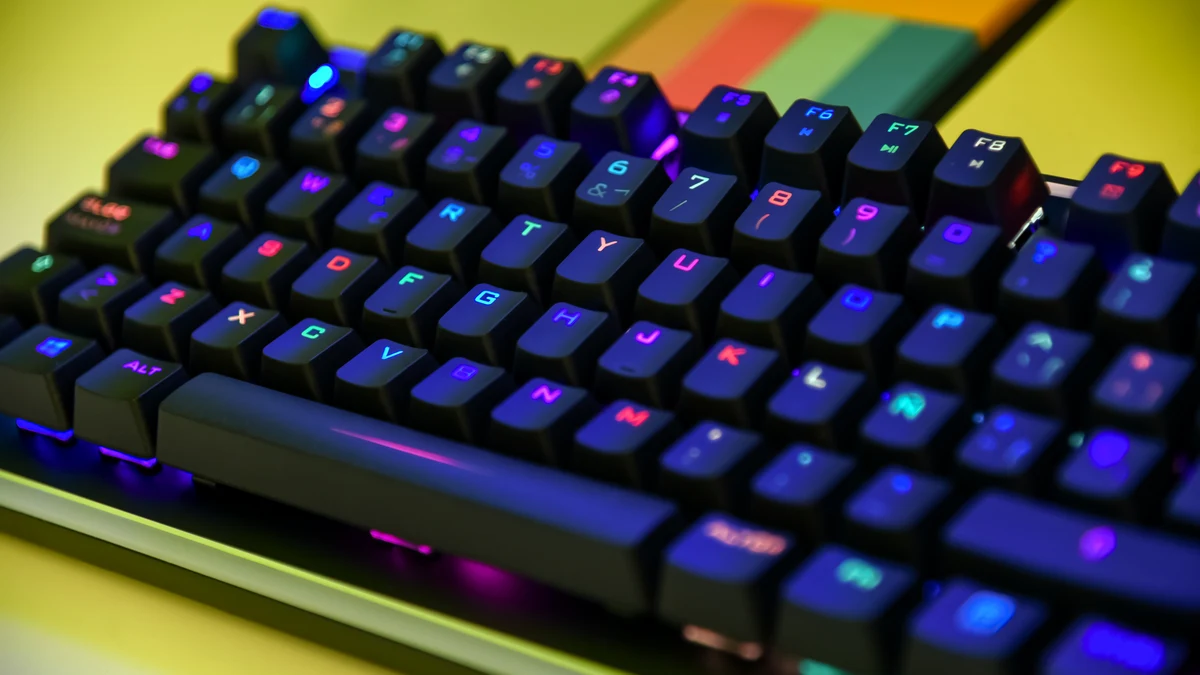
If your gaming PC has RGB parts from more than one brand, you already know the problem: a Corsair keyboard, an MSI motherboard, and a G.Skill RAM kit rarely want to sync colors together, and installing three different “unified” apps often makes things worse, not better. The good news is that free software exists to solve this, whether you want one app to rule everything or you’re fine running brand tools side by side. Here is an honest breakdown of the best free options, what they actually support, and where mixed-brand builds still cause headaches.
Why RGB software from different brands doesn’t play nice
Every major hardware maker ships its own control app that talks to its own devices over a proprietary USB protocol: Corsair uses iCUE, ASUS uses Aura Sync, MSI uses Mystic Light (now folded into MSI Center), ASRock uses Polychrome Sync, and Gigabyte uses RGB Fusion. When one of these apps is running, it typically claims exclusive access to the USB devices it recognizes, so a second brand’s software can’t see or control the same hardware while the first app is open. That’s why running iCUE and Mystic Light at the same time often causes one of them to lose control of a device, flicker between profiles, or simply fail to detect it. There have been some partial truces, most notably Corsair adding native Aura Sync motherboard support inside iCUE, but that’s the exception, not the rule, and it only helps if you own Corsair peripherals plus an Aura Sync board specifically.
OpenRGB: the universal, open-source option
OpenRGB is the closest thing to a real fix for the multi-brand problem. It’s free, open-source, and built specifically to control RGB lighting without relying on manufacturer software, which means it doesn’t come loaded with bloatware, telemetry, or forced auto-start services. It runs on Windows, Linux, and macOS, and supports a wide range of motherboards, GPUs, RAM kits, keyboards, mice, fans, and LED strips across brands including Corsair, ASUS, MSI, Gigabyte, ASRock, Razer, and more, with new devices added regularly since the device list is community-maintained. It can run as a standalone GUI, a background server, or a networked client so multiple PCs can sync lighting together, and it ships an SDK that lets other programs (music visualizers, game lighting integrations, ambient sync tools) drive your RGB directly.
The catch: device support is inconsistent. Because compatibility is reverse-engineered rather than officially licensed, some products work perfectly, some only support a subset of effects, and brand-new hardware often isn’t supported until someone adds it. You should check the official OpenRGB supported devices list before assuming your specific keyboard or motherboard model will work. It also generally can’t run at the same time as vendor software controlling the same device, since only one program can hold the USB handle.
Corsair iCUE
iCUE is Corsair’s control hub for keyboards, mice, coolers, fans, and RGB components, and it goes beyond lighting into fan curves, cooling performance, and macro management. If your build is mostly Corsair, iCUE is the most polished option here, and it now supports controlling ASUS Aura Sync motherboard lighting directly, plus integrations with Elgato Stream Deck and some smart home lighting brands like Philips Hue and Govee. The tradeoffs are real, though: iCUE is a heavier background app than most rivals, has a history of update-related bugs, and offers little help if the rest of your components aren’t Corsair or Aura Sync.
ASUS Aura Sync
Aura Sync is built into Armoury Crate and controls ASUS motherboards, graphics cards, monitors, RAM, and peripherals, along with a long list of third-party partners such as G.Skill, Corsair, Cooler Master, Lian Li, DeepCool, and Phanteks that license Aura compatibility for their RGB products. When your parts are on that partner list, Aura Sync genuinely delivers one-app control across brands. Effects include the usual static, breathing, and rainbow modes plus reactive options like Music Mode and Smart Mode, which ties lighting to CPU temperature. The downside is that Aura Sync only reaches partner-certified hardware, Armoury Crate has a reputation for being resource-heavy, and anything outside its certified device list is invisible to it.
MSI Mystic Light
Mystic Light is MSI’s RGB system, now bundled inside MSI Center rather than shipped as a standalone app. It handles onboard motherboard LED zones plus 3-pin ARGB and 4-pin RGB fan headers, and it works best, unsurprisingly, on a full-MSI setup. It’s straightforward and lightweight compared to some rivals, but its cross-brand sync options are more limited than Aura Sync’s, so a mixed build with non-MSI RGB parts will likely need OpenRGB or a second app running alongside it.
ASRock Polychrome Sync
Polychrome Sync is ASRock’s equivalent, controlling onboard motherboard lighting and connected ARGB/RGB headers. It’s a simpler, no-frills utility than iCUE or Armoury Crate, and it covers Windows 10 and 11 64-bit systems. It gets the job done for ASRock boards but has the smallest ecosystem of partner devices among the major motherboard brands, so builders with parts from several vendors will still need a universal tool to tie everything together.
Comparison table
| Software | Best for | Cross-brand support | Extra features | Downsides |
|---|---|---|---|---|
| OpenRGB | Mixed-brand builds | Wide, community-maintained | SDK, network sync, no bloat | Inconsistent support per model |
| Corsair iCUE | Corsair-heavy builds | Aura Sync motherboards only | Fan curves, macros, smart home sync | Heavier app, occasional bugs |
| ASUS Aura Sync | Aura-certified partner parts | Good, via licensed partners | Music/Smart reactive modes | Limited to certified hardware |
| MSI Mystic Light | MSI motherboards | Limited | Bundled in MSI Center | Weak cross-brand sync |
| ASRock Polychrome Sync | ASRock motherboards | Limited | Simple, lightweight | Smallest partner ecosystem |
How to pick the right setup for your build
If every RGB part in your PC is from one brand, use that brand’s own software; it will be the most stable and feature-complete option. If your build mixes brands and none of them officially partner with each other, start with OpenRGB and check the supported devices list for each specific component before installing anything. If OpenRGB doesn’t fully cover your hardware, you may need to accept partial sync: use the vendor app for lighting effects on its own parts, and either close it when running OpenRGB or set matching static colors across apps as a manual workaround. Avoid running two full vendor suites (like iCUE and Armoury Crate) simultaneously unless you’ve confirmed they coexist, since USB device conflicts are the most common cause of RGB software randomly losing control of a component.
Troubleshooting common RGB sync problems
Most “my lights won’t sync” complaints trace back to one of a few causes. First, check for USB handle conflicts: only close one vendor app before opening another, and see if the missing device reappears. Second, confirm the device is actually on the software’s supported list, since unsupported hardware won’t show up no matter how the software is configured. Third, update motherboard firmware and USB drivers, since RGB headers routed through internal USB hubs are a common source of detection issues after Windows updates. Finally, if you’re using OpenRGB alongside a vendor app for other features (like iCUE’s fan curves), disable that vendor app’s lighting control specifically rather than closing the whole program, if the option exists, so the two don’t fight over the same header.
Conclusion
For most builders with hardware from multiple brands, OpenRGB is the best starting point because it’s free, open-source, and built specifically to bridge the gap between vendors, even though its device support varies by model. If your build is dominated by one brand’s ecosystem, stick with that brand’s own software (iCUE, Aura Sync, Mystic Light, or Polychrome Sync) for the most reliable experience, and only add OpenRGB for the leftover parts that vendor won’t touch. There’s no single app that guarantees perfect sync across every brand today, so check your exact hardware against OpenRGB’s device list before you buy your next RGB component if cross-brand compatibility matters to you.

[…] Best Free RGB Control Software for Gaming PCs (2026) PUBG Mobile Sensitivity Settings and Control (ESRB T) Transport Fever 3 System Requirements: Can Your PC Run It? Gears of War: E-Day System Requirements: Can Your PC Run It? […]