Every frame your streaming software eats is a frame your game doesn’t get. That trade-off is the entire story of streaming software in 2026 — the differences between OBS, Streamlabs, XSplit, and the platform-native tools aren’t really about who has more overlay templates, they’re about how much of your GPU and CPU each one steals while you’re trying to hold 144fps in a ranked match with a webcam and a chat overlay running on top of it.
OBS Studio remains the free, lightweight baseline
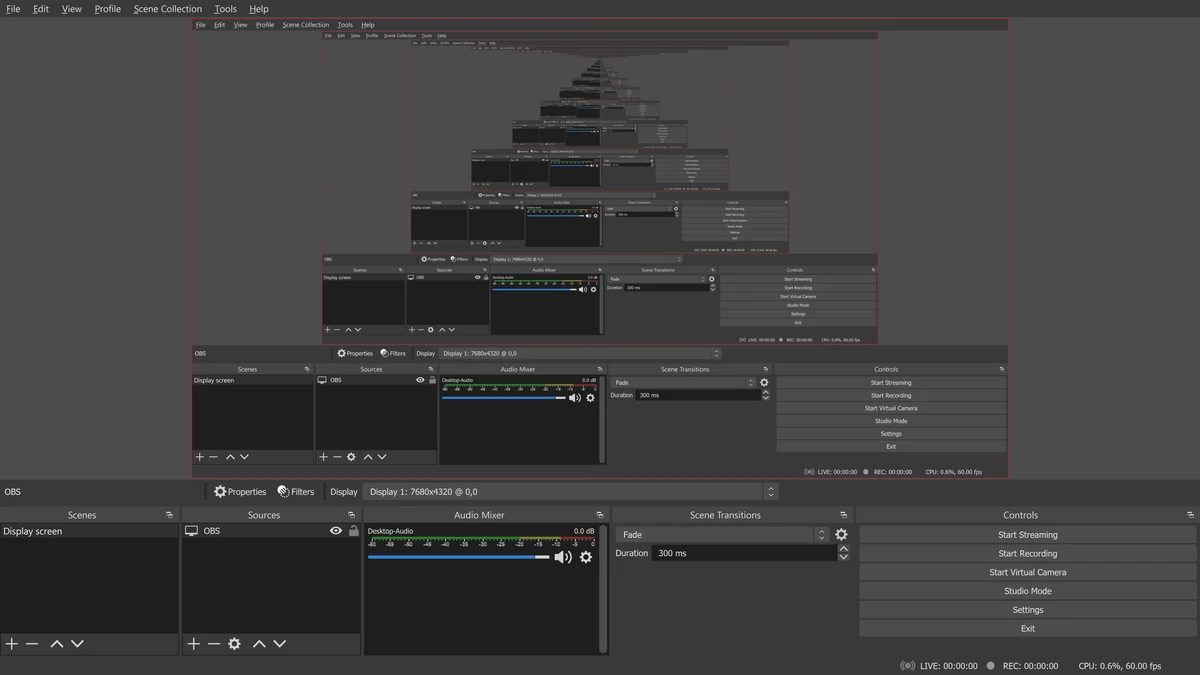
OBS Studio is still free, open-source, and the reference point everyone else gets measured against. Current stable builds (32.x as of mid-2026) support NVENC AV1 encoding on RTX 40-series and newer GPUs alongside HEVC and legacy H.264, and independent testing has clocked OBS running at roughly 1% CPU and 232MB of RAM at 1080p60 with a basic scene — genuinely negligible overhead. It runs natively on Windows, macOS, and Linux, which none of its commercial competitors fully match. The tradeoff is setup time: scenes, sources, hotkeys, and stream keys are all manual, and alerts or donation widgets require plugins or a separate service like StreamElements layered on top.
Streamlabs: OBS’s engine with the extras built in
Streamlabs is built on the same underlying engine as OBS but wraps it in an all-in-one package — alerts, donation widgets, chat box overlays, themes, and one-click Twitch/YouTube/Facebook Gaming integration are all native instead of bolted on. That convenience costs both money and resources: Streamlabs Ultra runs \$27/month (or \$189/year), and the same head-to-head benchmark that clocked OBS at 1% CPU and 232MB RAM found Streamlabs using roughly 5% CPU and 1.2GB of RAM for an identical scene — two to three times the memory footprint at idle. For a new streamer who wants alerts and overlays working in twenty minutes without touching a plugin manager, that overhead is a reasonable trade. For anyone streaming a CPU-heavy game and trying to protect every frame for gameplay, it’s the difference between OBS and Streamlabs being noticeable in your actual FPS counter.
XSplit: still around, still paid, still niche
XSplit Broadcaster sits in an odd spot in 2026 — pricing varies by source between roughly \$5-15/month for its Premium tier, with a limited free version available. It offers multi-scene streaming, chroma keying, real-time video effects, and a “Projector Mode” useful for local recording setups, plus XSplit Gamecaster as a lighter, game-focused sibling app aimed at simpler overlay and one-click Twitch streaming. It has a loyal niche among Windows streamers who want a polished commercial UI without OBS’s learning curve, but it’s lost significant mindshare to the free OBS/Streamlabs pairing over the last several years, and its Windows-only status is a real limitation next to OBS’s cross-platform support.
Encoding: NVENC vs x264, and why it matters more than your bitrate slider
This is the setting that actually determines whether streaming tanks your in-game frame rate. x264 is a software encoder that runs entirely on your CPU — it produces excellent quality per bitrate, but every core it uses is a core stolen from your game engine, physics, and AI calculations. NVENC is a dedicated hardware encoder built into NVIDIA GPUs (and AMD’s AMF/VCE serves the same role on Radeon cards) that handles encoding on silicon separate from your CUDA cores, meaning it barely touches your in-game frame rate.
For any RTX 40-series or newer card, NVENC AV1 is now the strongest option available in OBS — on RTX 4000-series and up, CQP 22 produces quality roughly on par with HEVC at about 30% smaller file sizes for local recording, and stream quality at a given bitrate has closed most of the historical gap with x264. AMD’s Adrenalin software has caught up with its own AV1 hardware encoder on RX 7900-series and newer cards, supporting up to 8K60 streams, though NVIDIA’s NVENC has generally had a smoother rollout with fewer driver hiccups. The practical rule hasn’t changed in years: if you’re gaming and streaming on the same machine, use the hardware encoder (NVENC or AMF) and save x264 for dedicated capture-card or dual-PC setups where your CPU has nothing else to do.
Comparing the core options
| Software | Cost | Idle Resource Use | Best For |
|---|---|---|---|
| OBS Studio | Free | Lightest (~1% CPU, ~230MB RAM) | Anyone comfortable with manual setup; cross-platform users |
| Streamlabs | Free / Ultra \$27 mo | Higher (~5% CPU, ~1.2GB RAM) | Beginners who want alerts/overlays pre-integrated |
| XSplit | Free tier / ~\$5-15 mo | Moderate | Windows users wanting a polished commercial UI |
| NVIDIA Broadcast | Free (RTX GPU required) | Low, GPU-accelerated | AI noise removal, virtual background, webcam auto-frame |
| Xbox Game Bar | Free, built into Windows | Low | Quick clips and recording without installing anything |
NVIDIA Broadcast, the NVIDIA App, and AMD’s Adrenalin suite
NVIDIA Broadcast isn’t a full streaming suite — it’s a filter layer that sits underneath one. It uses your RTX card’s Tensor Cores to run AI noise removal and room echo removal on your mic in real time, plus virtual background replacement and auto-framing for your webcam, all as virtual devices you feed into OBS or Streamlabs. It’s genuinely one of the highest-value free tools for anyone streaming from a noisy room or without a green screen. Separately, NVIDIA retired GeForce Experience in favor of the unified NVIDIA app, which folds driver updates, game optimization, and an overlay with AV1 recording at up to 120fps into one lighter, faster tool that no longer requires an account login for core features. AMD’s equivalent, Adrenalin Edition, handles the same territory on Radeon cards through its Record & Stream tab (formerly branded ReLive), now with AV1 encoding support on RX 7900 and RX 9000-series cards.
Xbox Game Bar: the free option nobody installs on purpose
Xbox Game Bar is already sitting on every Windows 10 and 11 machine, launched with Win+G, and it does one thing well: fast, no-install screen recording and screenshots with a basic performance overlay. It’s not a streaming tool in any serious sense — no scenes, no multi-source compositing, no RTMP output to speak of — but for grabbing a clip of a clutch round without opening OBS, it’s genuinely convenient. Microsoft’s newer Xbox Mode, rolling out through 2026 as a controller-first full-screen dashboard, replaces Game Bar’s functions for users who opt into it, but for standard desktop use, Game Bar is unchanged and still the fastest path to a quick clip.
Scene setup and overlays: where the time actually goes
Regardless of which software you pick, the biggest quality gap between a good stream and an amateur one isn’t the encoder — it’s scene design. A clean starting-soon scene, a properly cropped webcam with chroma key or NVIDIA Broadcast’s background removal, a game-capture source instead of a laggy display-capture, and alerts that don’t cover your HUD are what separate a stream people stay in from one they close in ten seconds. OBS and Streamlabs both handle scene collections and hotkey-based scene switching; the difference is just how much of that you build yourself versus how much comes as a pre-made theme.
The bottom line
If you’re gaming and streaming on the same rig, run OBS Studio with a hardware encoder (NVENC on NVIDIA, AMF on AMD) — it’s free, it’s the lightest option on your system by a wide margin, and the plugin ecosystem covers anything Streamlabs offers out of the box. Streamlabs earns its place if you’re brand new and want alerts, widgets, and platform integration working immediately without touching a config file — just know you’re trading system resources for convenience. Layer NVIDIA Broadcast or AMD’s equivalent audio tools underneath either one regardless of which you pick; free AI noise removal has no real downside.

[…] Monitor GPU Temperature While Gaming (Free Tools) Best PC Utilities Every Gamer Should Install Best Streaming Software for Gamers in 2026 Best VPNs for Gaming in […]